Email and calendar
Once Google is connected, Home has three tabs at the top: Home, Email and Calendar. Your mail and your week sit next to the agents that help with them.
Press ⌘1, ⌘2 or ⌘3 to switch tabs. Loom remembers the last one you used. Not connected yet? Each tab has a button to sign in with Google; see Connections and sites.
The Email tab
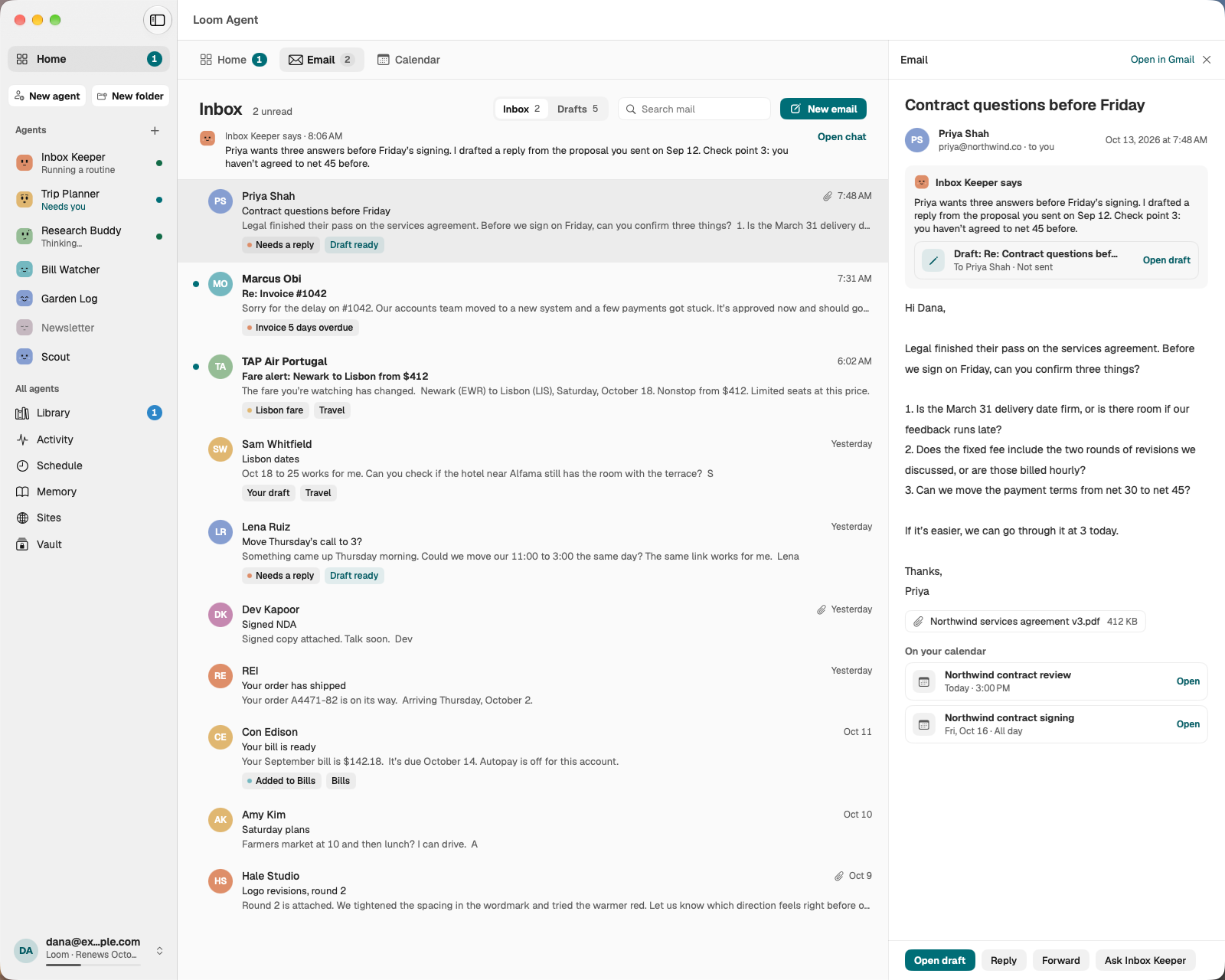
A simple mail window for your Gmail. Choose Inbox or Drafts at the top, and use Search mail to find a message by sender, subject or words in it.
- Click a message to read it in the panel on the right. Opening it marks it read in Gmail.
- If an agent has looked at it, you see what the agent says about it, and a chip such as Needs a reply or Draft ready in the list.
- Reply, Forward and New email open a draft you write yourself. It saves to Gmail Drafts as you type, so nothing is lost.
- Ask the agent about a message, and you go to its chat with the panel still open.
Drafts your agents write
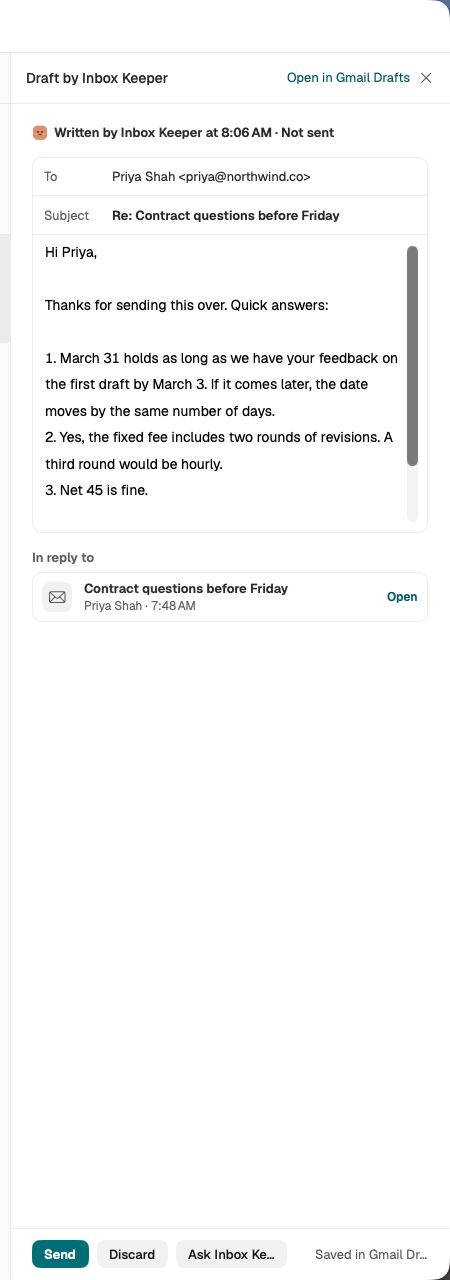
Agents can write replies for you. They're saved in Gmail Drafts, and listed under Drafts, marked with the agent that wrote them. Nothing is sent until you send it.
- Open a draft to read it. You can change who it's to, the subject and the words; your edits save to Gmail Drafts as you type.
- Send sends it. Discard deletes the draft, and the agent won't write that one again. Changed your mind? Undo.
- If an agent stopped before sending because sending needs your OK, the draft says Needs your OK. Sending it yourself counts as your OK for that one email only.
The Calendar tab
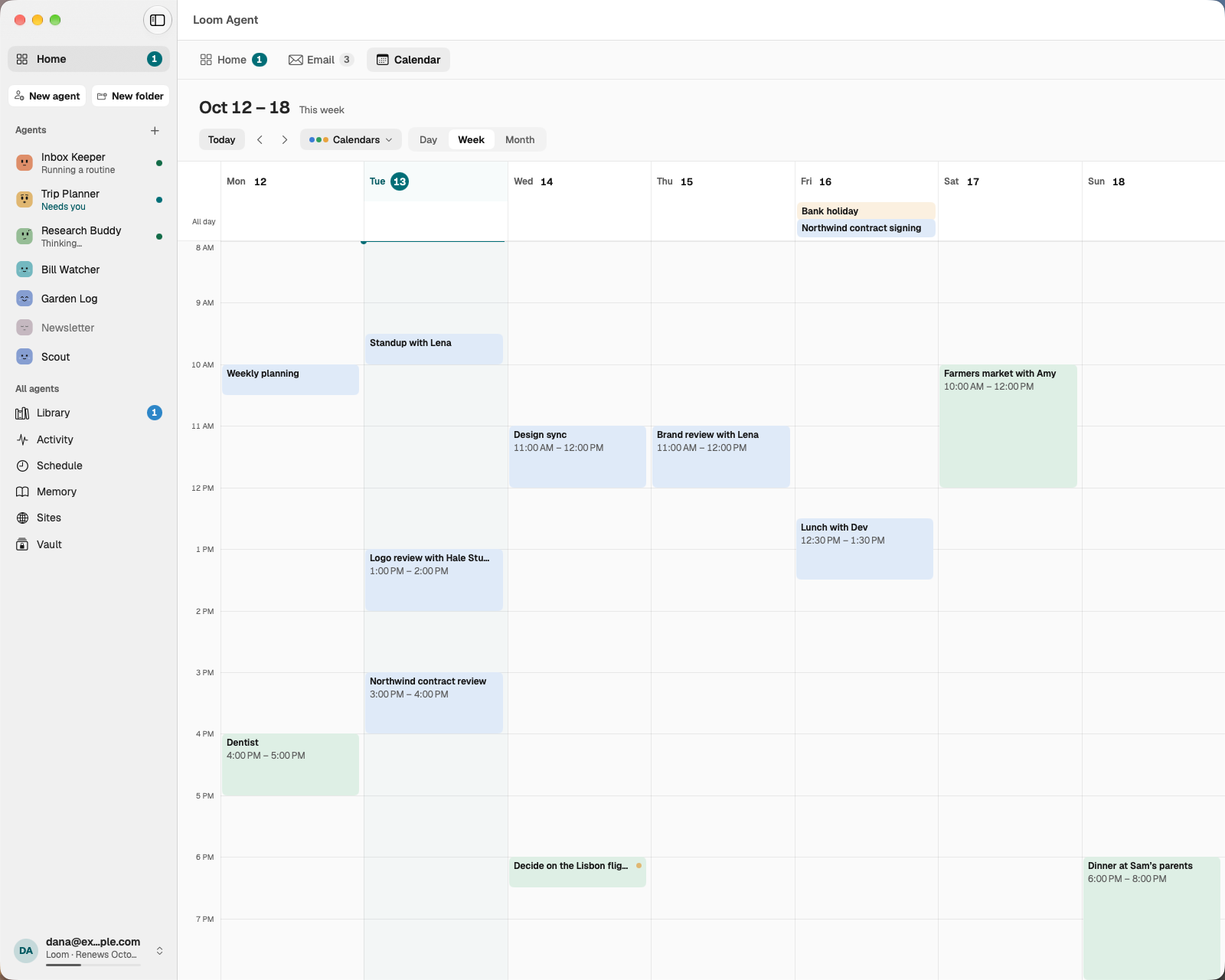
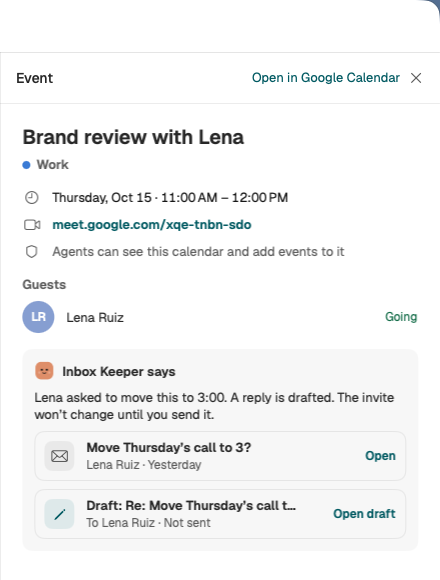
Your Google Calendar by Day, Week or Month. Today brings you back to now. Click an event to see it in the panel: when and where, who's coming and their replies, a Join button for video calls, and any notes your agents left about it. An event an agent added is marked with a dot in the agent's colour.
What agents may do on each calendar
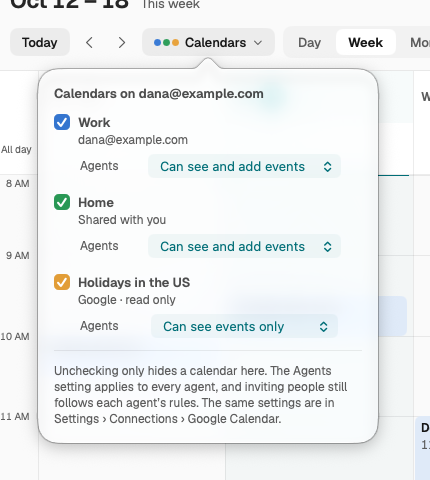
Choose Calendars at the top of the Calendar tab. For each of your Google calendars you can show or hide it here, and choose what your agents may do with it:
- Can see and add events
- Can see events only
- Can’t see this calendar: agents never see its events.
This applies to every agent. Unticking a calendar only hides it from your view. Agents add or change events only on calendars set to Can see and add events, and inviting other people still follows each agent's Rules. The same settings are in Settings › Connections › Google Calendar.
When an agent mentions an email or event
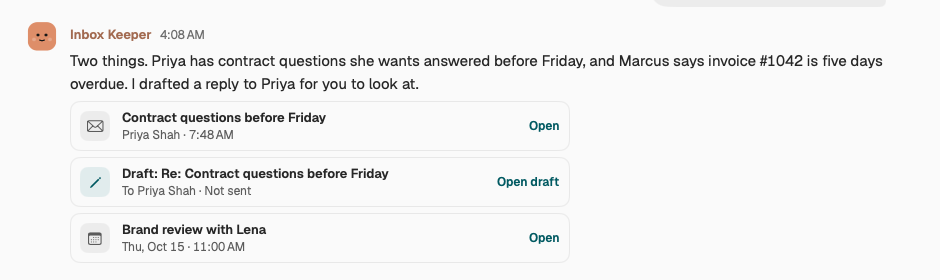
When an agent talks about an email, a draft or an event in its chat, a small card for it sits under its message. Click the card and it opens in the panel, right next to the chat, so you never lose your place.
Good to know
- There's no Reply all, Cc, attachments or formatting in Loom yet. Use Gmail for those; Open in Gmail takes you there.
- Your mail and events are read on your Mac. See Privacy, plainly.
- Want an agent to act when a certain email arrives? Use a watch.